
Alpha testers
First stepsYour first river journey: install the alpha, try every class, and help us make TATAZO better.
Welcome to the alpha
Your first camp. A pet at your side. A friend arriving in the world you made. Thank you for helping those moments feel right in TATAZO.
The alpha is an early, unfinished version of the game. We want to learn what feels fun, what is confusing, and what breaks on your computer. You do not need to be good at games to help. Getting lost in a menu is useful feedback too.
How long does it run? The closing date has not been announced. There is no required play time. A first session of about 30 minutes is a useful start; stop whenever you need to. Alpha saves and tester gifts are not a promise of progress in the release game.
Start with a fresh gator in Adventure. Try moving, gathering and crafting before using the tester shortcut. Then choose one thing from the checklist below and tell us how it felt.
Download and install
Download the alpha client below. The Windows version is ready now; the Mac version is coming soon.
What you need
| Computer | Alpha support |
|---|---|
| Windows | Windows 10 or 11, 64-bit. The download is about 225 MB. |
| Mac | macOS 12 or newer, Apple silicon and Intel. The Mac download is coming soon. |
| Controls | Keyboard and mouse, or a game controller. Read the action hints shown for your device. |
| Storage | Leave room for the ZIP, the unpacked game, saves and screenshots. The unpacked game is larger than the download. |
| Internet | Needed for the download and SEND. Solo play works offline. Friends need a network connection. |
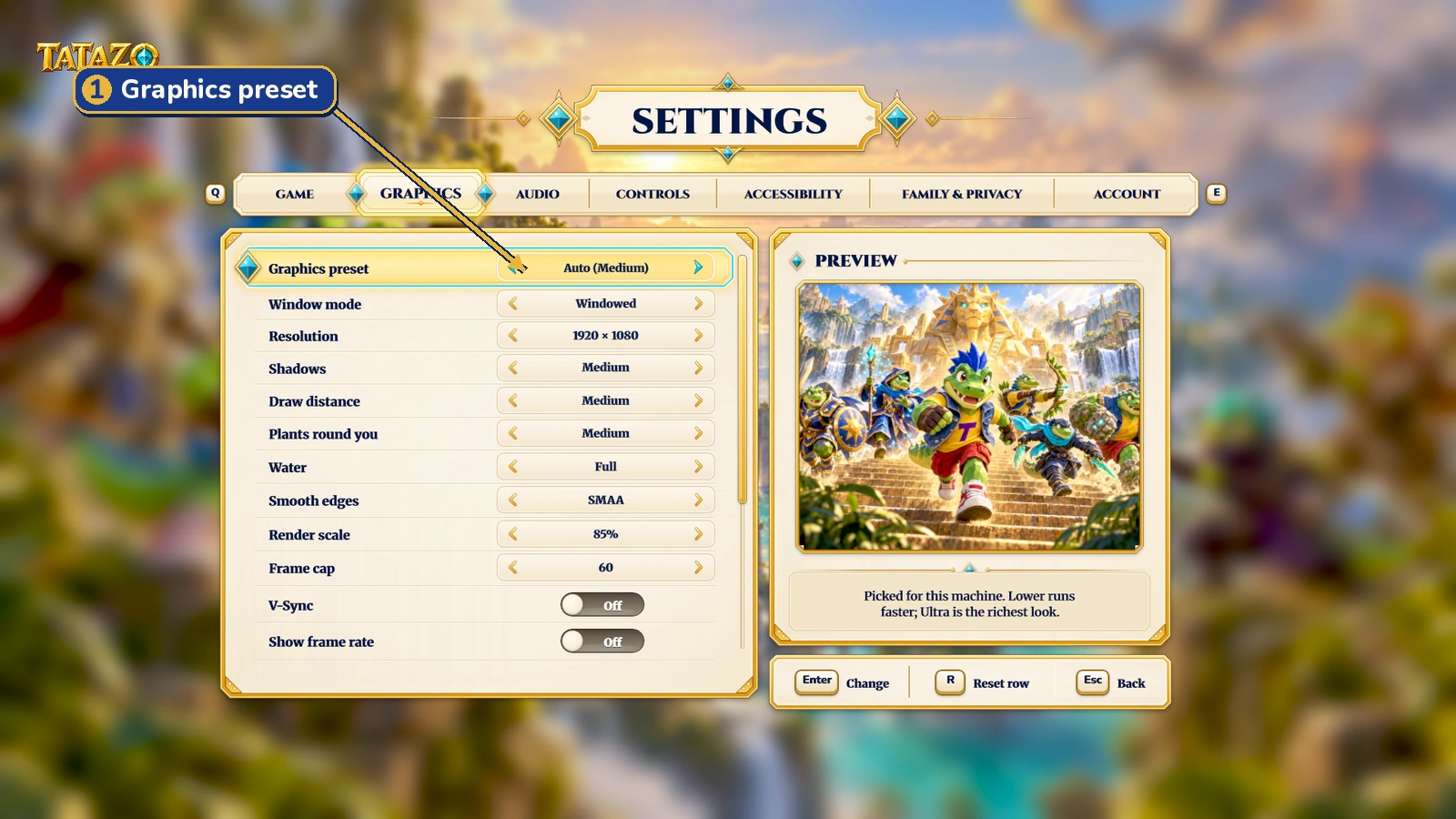
Minimum memory and graphics-card requirements are still being measured. Settings → Graphics → Graphics preset starts on Auto, which chooses a preset for your computer. Try Low on a weaker computer or if play feels slow. Some earlier alpha instructions call this tab Video. Tell us if it still stutters, especially in a busy place.
Windows: unzip and open
- Download the Windows ZIP. Right-click it and choose Extract All…, then Extract.
- Open the extracted folder and double-click TATAZO.exe. Keep the whole game folder together. Do not move just the application out of it.
- If Windows protected your PC appears, choose More info, then Run anyway. This alpha does not yet have a trusted publisher signature, so Windows may show this warning.
macOS: unzip and allow the first open
- Download the macOS ZIP and double-click it to unpack it. Drag TATAZO.app into Applications.
- Right-click the app, choose Open, and confirm Open if offered. You can also Control-click to open that menu.
- If your Mac blocks it, first try opening the app once. Then open System Settings → Privacy & Security, scroll to Security, and choose Open Anyway for TATAZO. Confirm Open when asked.
- After that, open TATAZO normally from Applications. This alpha has not yet been signed and notarised for public distribution.
If the app still will not open, email support@playtatazo.online with the exact message and your system version. The operating-system steps are written here because their appearance differs between computers.
Trouble installing or opening?
Start with the message you see. If these steps do not help, email support@playtatazo.online and we will help you find the next step.
“This app can't run on your PC”
We shared the wrong Windows build on 30 September 2026. That build was made for ARM computers instead of ordinary Intel and AMD PCs. We have fixed it. Sorry for the trouble.
- Download the Windows file again and extract it into a new folder. Open the new copy.
- Open Settings → System → About → System type in Windows. You need 64-bit Windows and an x64-based processor for this download. It will not run on 32-bit Windows.
- If the message remains, send us a picture of the message and your System type.
Opening the game from inside the ZIP
- Close the ZIP window. Right-click the downloaded ZIP and choose Extract All… → Extract.
- Open the extracted folder, then open TATAZO.exe. Keep the whole folder together; the game needs the files beside the application.
“Windows protected your PC”
For the alpha downloaded from this page, choose More info → Run anyway. Our alpha does not yet have a trusted publisher signature.
Antivirus moved a game file to quarantine
Open your antivirus app's Quarantine or Protection history. If it removed a file from this alpha, restore it and allow the extracted TATAZO folder. Keep antivirus protection on. If it reports a named threat or you are unsure, email us the exact warning before allowing it.
Missing DirectX or Visual C++ files
- For VCRUNTIME or MSVCP errors, find Latest supported Visual C++ Redistributable downloads on Microsoft Learn. Install or repair the X64 version.
- For missing older DirectX files such as D3DX or XINPUT1_3, find DirectX End-User Runtime Web Installer in the Microsoft Download Center. For D3D11 or DXGI errors, install Windows updates and update your graphics driver instead.
- Restart the computer and try again. Download installers from Microsoft, not individual DLL files from other sites. Send us the exact error if it remains.
The game closes at start
If you can reach the title, open Settings → Graphics → Graphics preset, choose Low, and try again. Update the graphics driver from your computer maker or graphics-card maker, then restart. If the title never appears, send us the log below; you do not need to reach the settings first.
Find the log and ask for help
- In Windows File Explorer, paste
%USERPROFILE%\AppData\LocalLow\Duck Mines Game Studio\TATAZOinto the address bar. Player.log is the latest game log; Player-prev.log, when present, is the previous session. Copy the log before reopening the game. - Saved feedback is in the bug_reports folder at that same location. It appears after a report is saved. Zip that folder if your report is there.
- Email support@playtatazo.online with the exact message, what you tried, your Windows version and System type, and your graphics-card name if known. Attach the relevant log, a picture of the error, and the zipped reports if available. Review attachments for personal information; you do not need to send your saves.
On Mac, find reports at ~/Library/Application Support/unity.Duck Mines Game Studio.TATAZO/bug_reports and the game log at ~/Library/Logs/Duck Mines Game Studio/TATAZO/Player.log. In Finder, use Go → Go to Folder… to open those locations. A log may not exist if the operating system blocked the game before it started.
First steps: from PLAY to your first world
The numbered pictures follow the order below. Select any picture to open it at full size. The alpha's screens may change as the game improves.
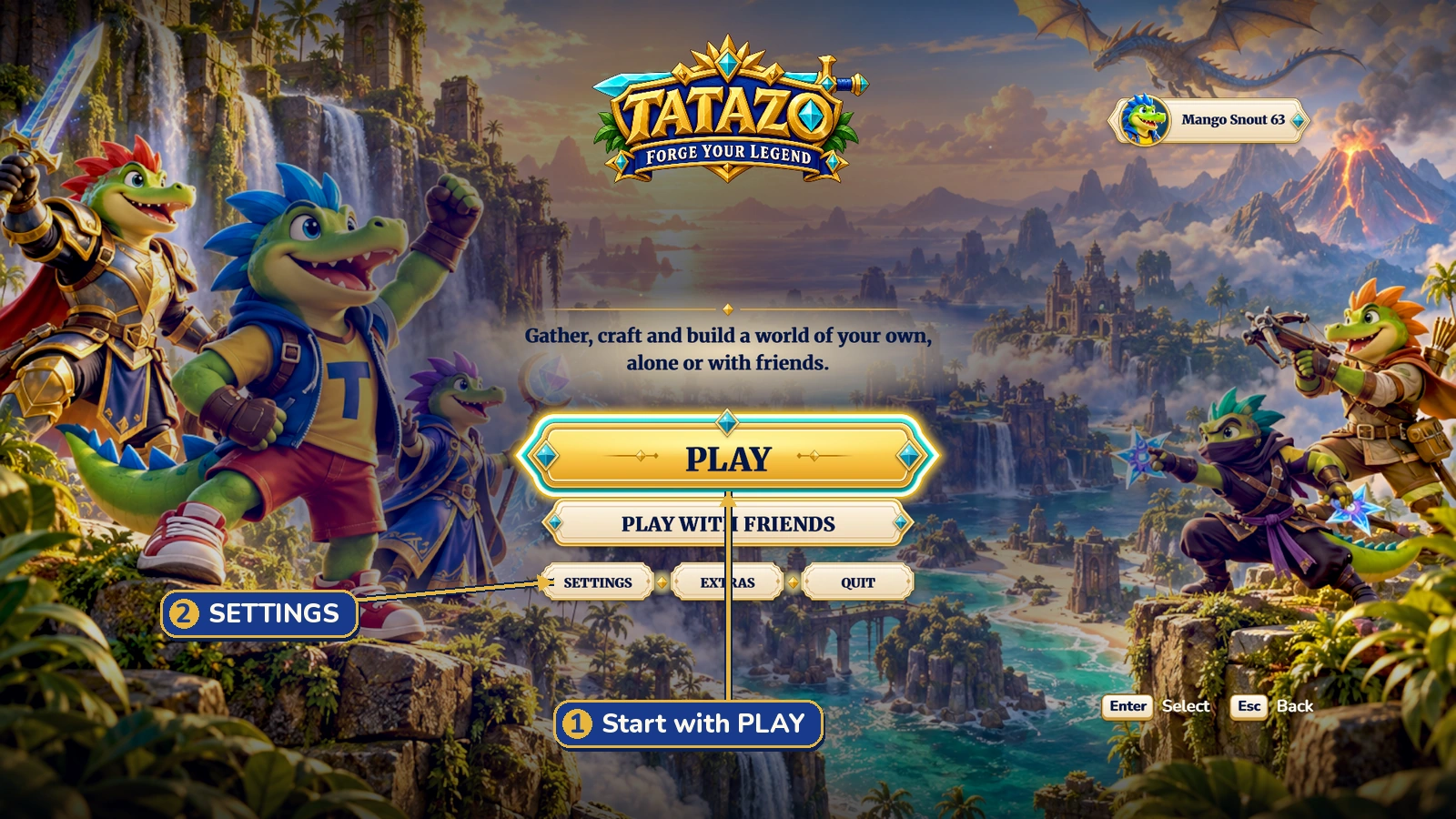
1. Start at the title
Choose PLAY to begin. Use SETTINGS first if you want to change video, sound or controls. CONTINUE, when available, resumes your last adventure.
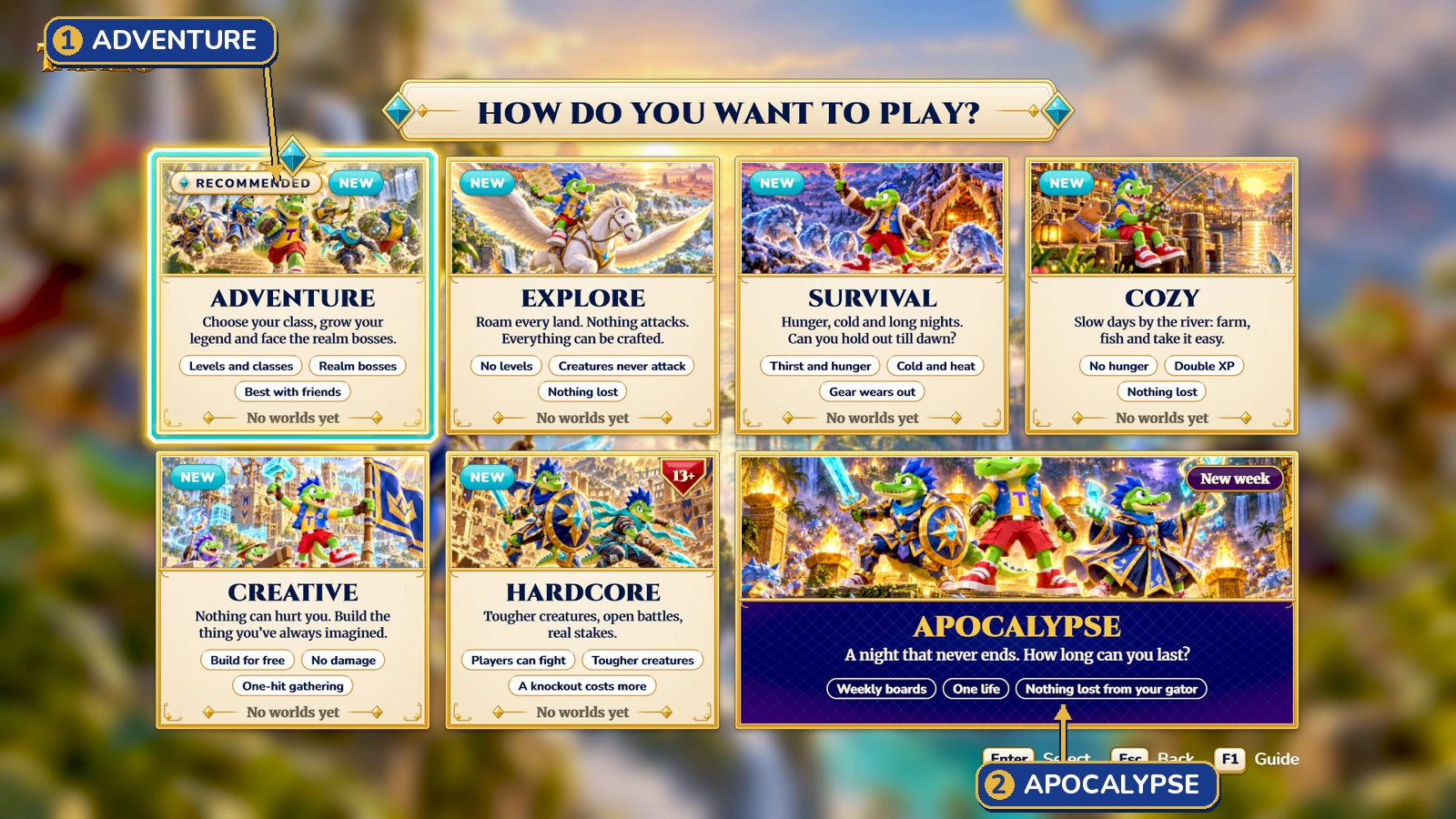
2. Choose a mode card
Pick ADVENTURE for a first journey. Each picture card opens a page explaining that mode. APOCALYPSE has its own card and run setup.
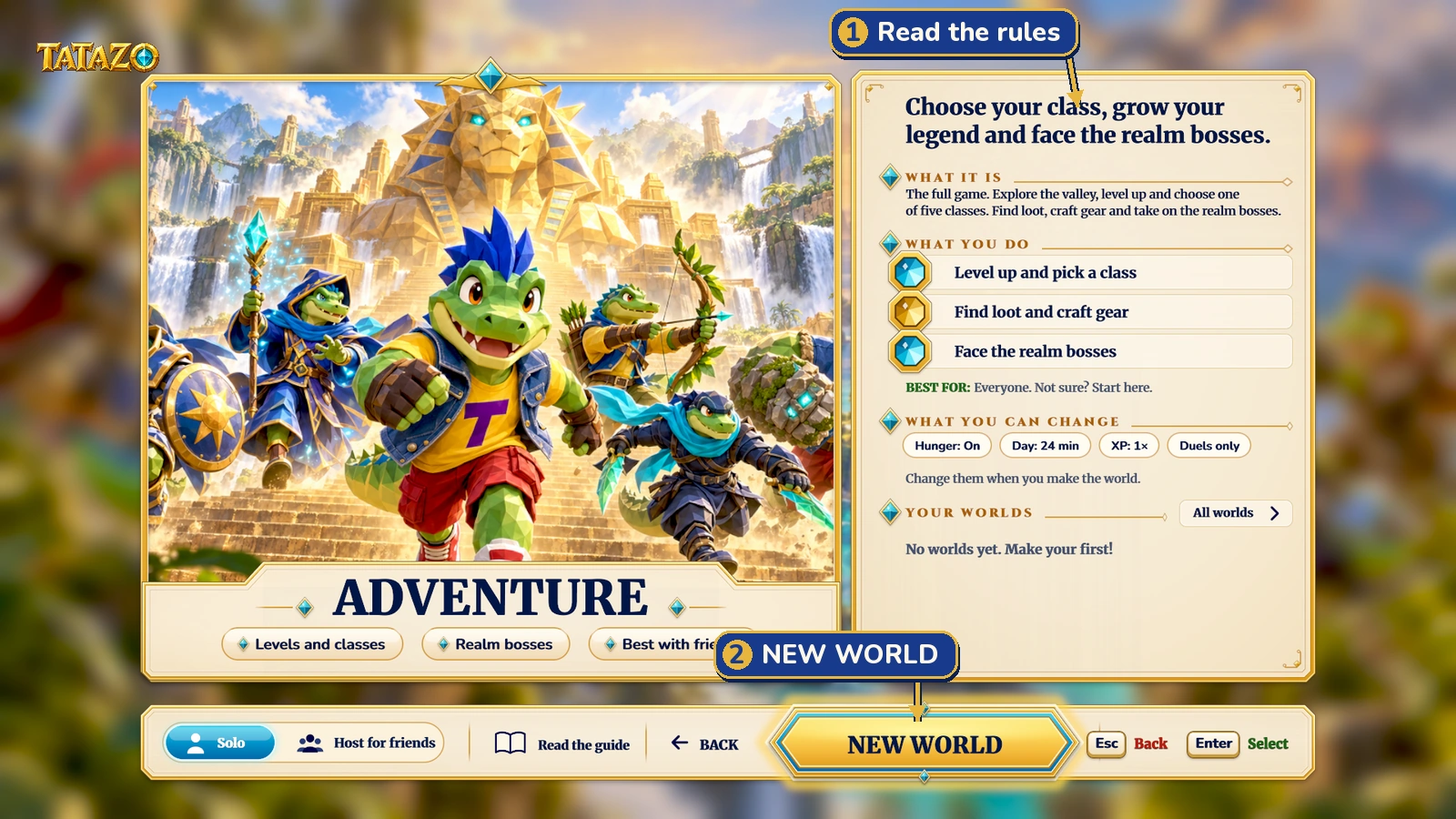
3. Read the mode page
Read the mode's rules, then choose NEW WORLD. Later, this page also helps you return to worlds you already made.
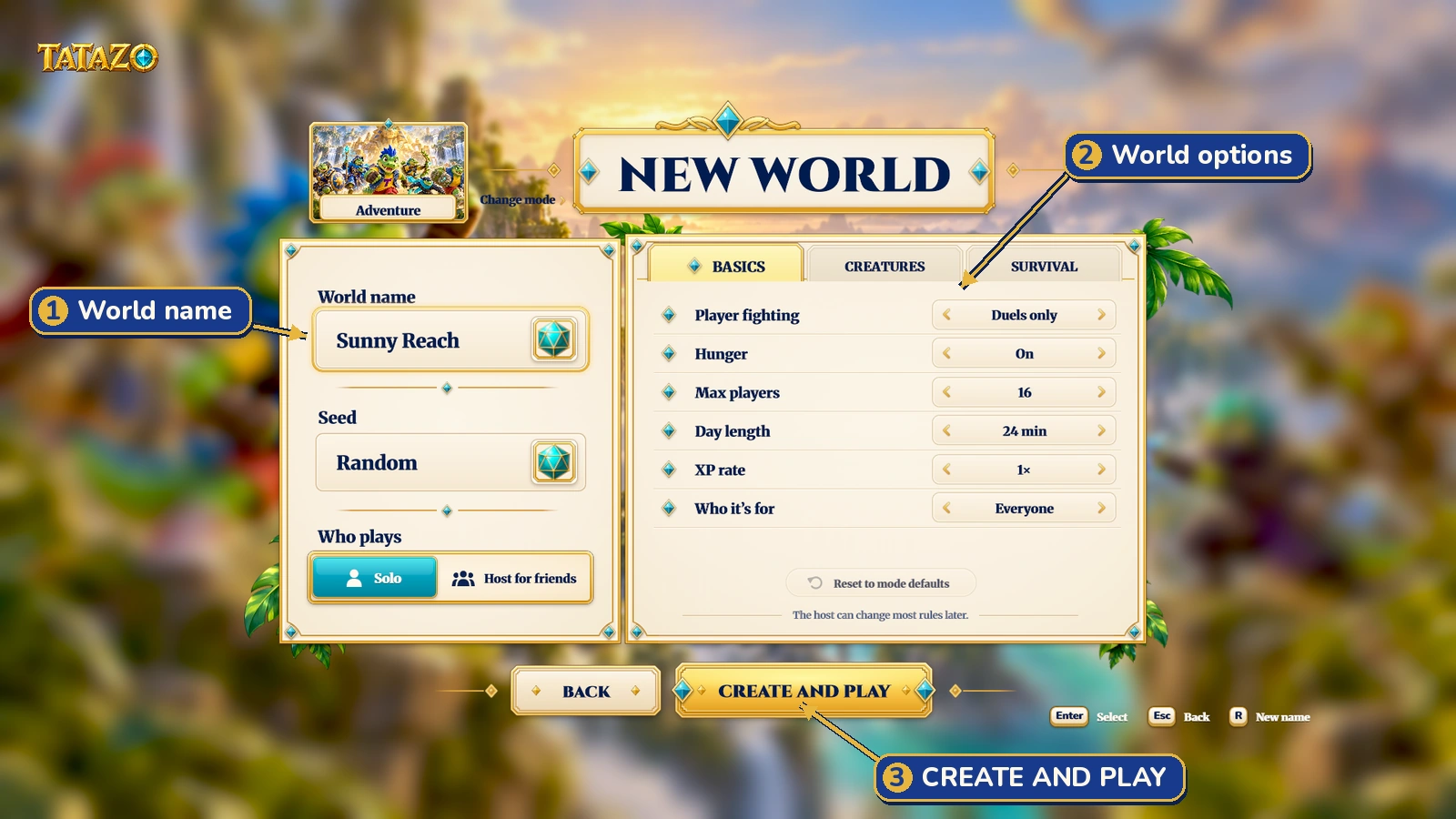
4. Set up the world
Give the world a name. Review the options before continuing. For your first test, keep the default Adventure rules and Solo. Choose CREATE AND PLAY to go to the gator setup; START on the picker begins play.
5. Pick your gator and start
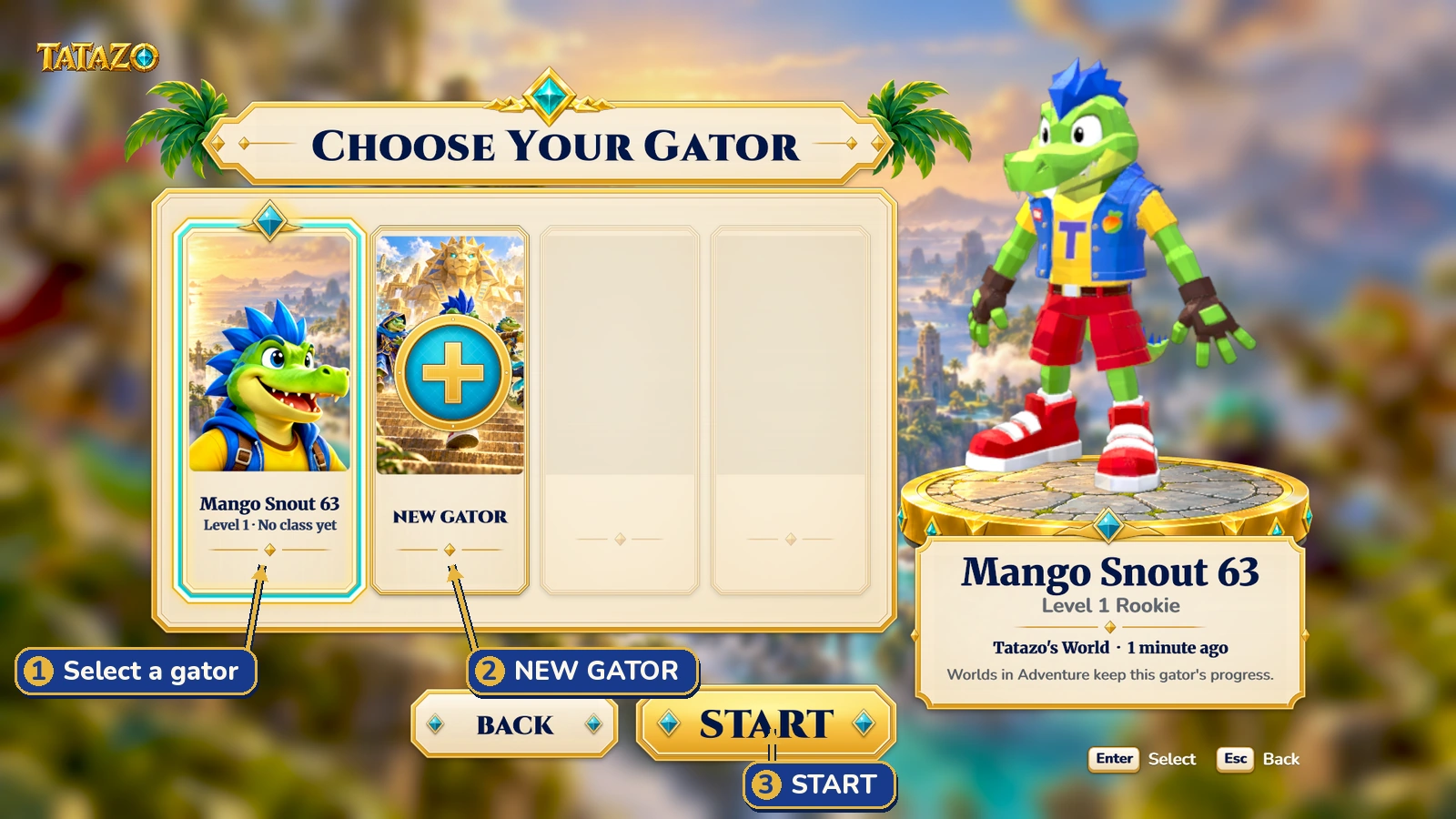
Select a gator card, then choose START. Selecting the card alone does not start the game. Use NEW GATOR when you want another fresh character. A new gator learns its class during play; see Picking your class.
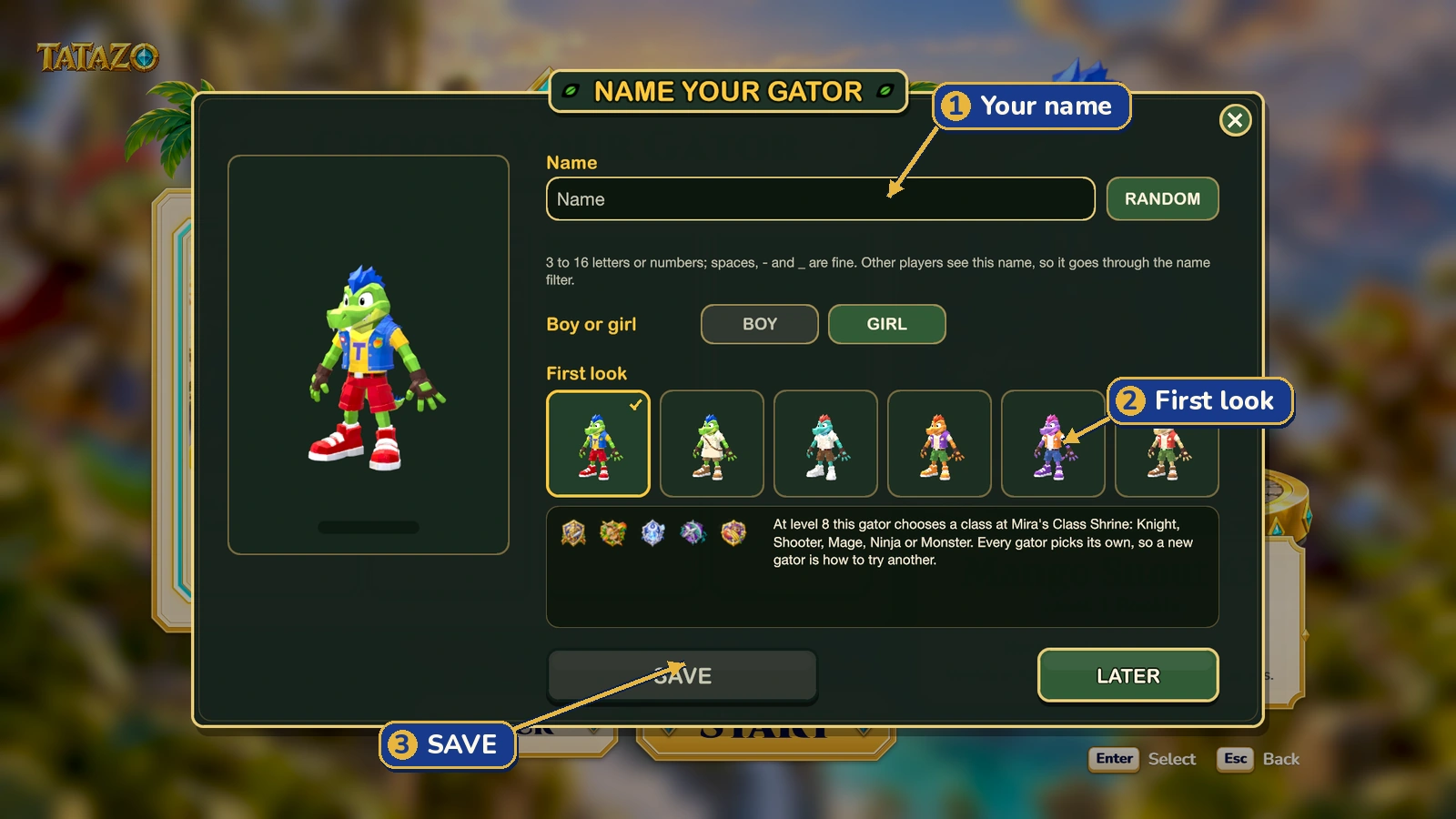
On your very first visit, NAME YOUR GATOR may open first. Enter a name, choose your first look, and choose SAVE. The looks here do not choose your class.
Use the on-screen Select, Back and navigation hints for your keyboard or controller. In the world, try Move, Look, Jump, Dash and Interact. The controls guide explains the tool wheel and action bar. Getting started walks you through your first day.
Activate the tester characters
Want to compare a Knight with a Mage without levelling both? The alpha has a separate tester profile for trying the later game.
- Enter a normal world first. Leave an APOCALYPSE run before using the shortcut.
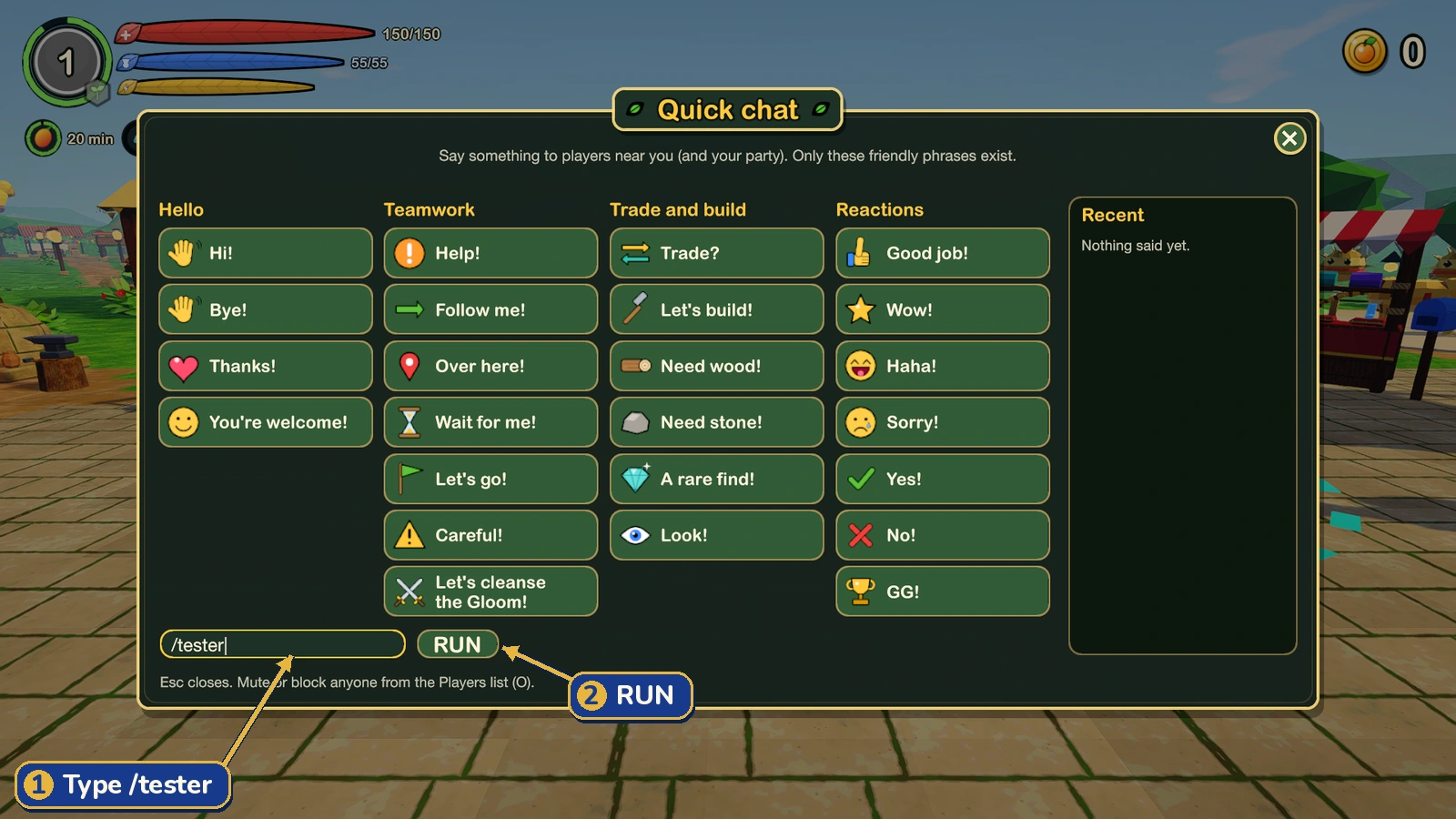
- Open Quick chat using the action shown in your controls.
- Select the local command box, type /tester, and choose RUN. This command stays local; it is not a message to nearby players.
- The game saves and leaves your ordinary world, switches to the tester profile, and opens the gator picker.
- Select Test Knight, Test Mage, Test Shooter, Test Ninja or Test Monster, then choose START. Scroll along the row to reach the fifth gator.
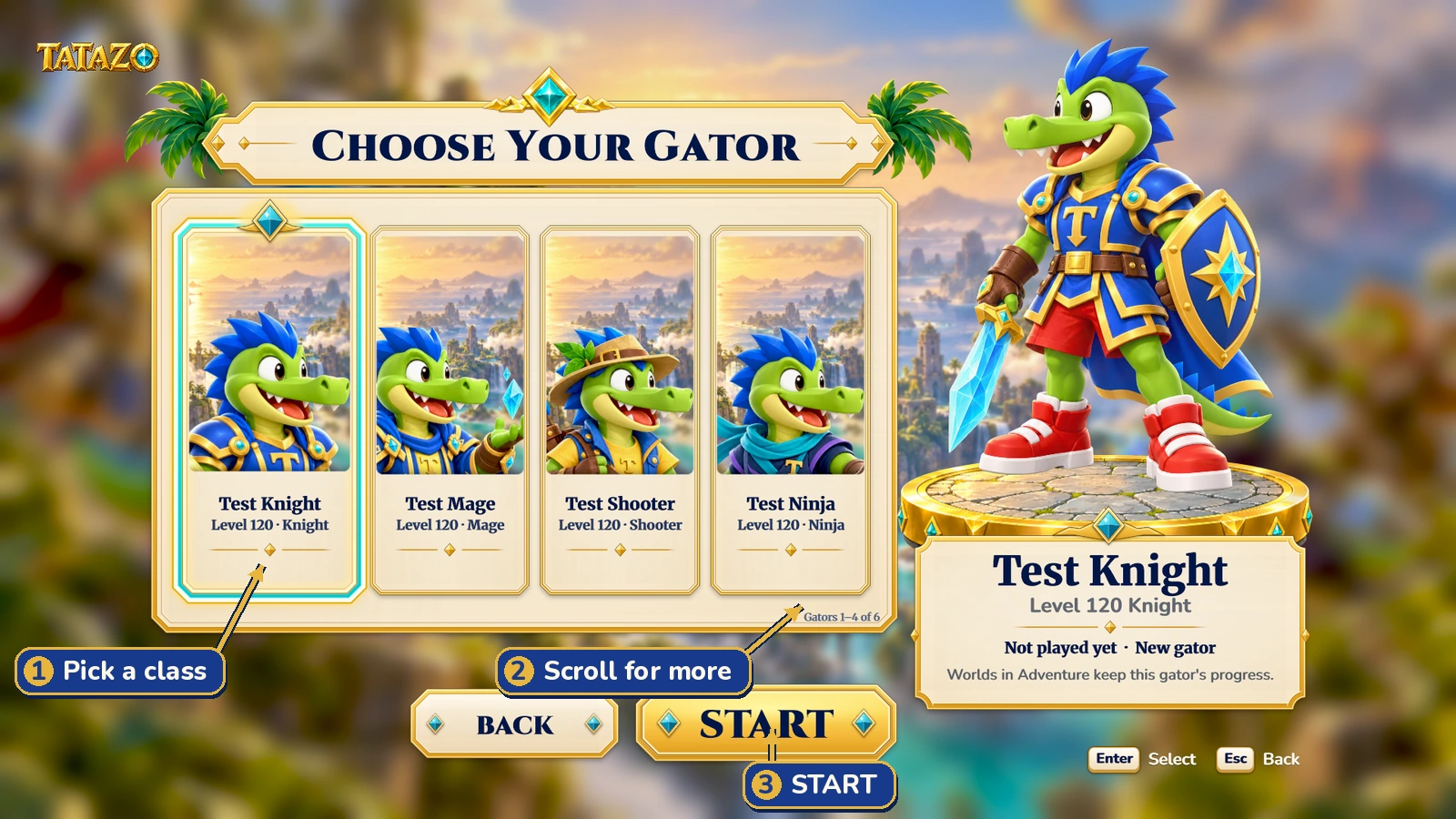
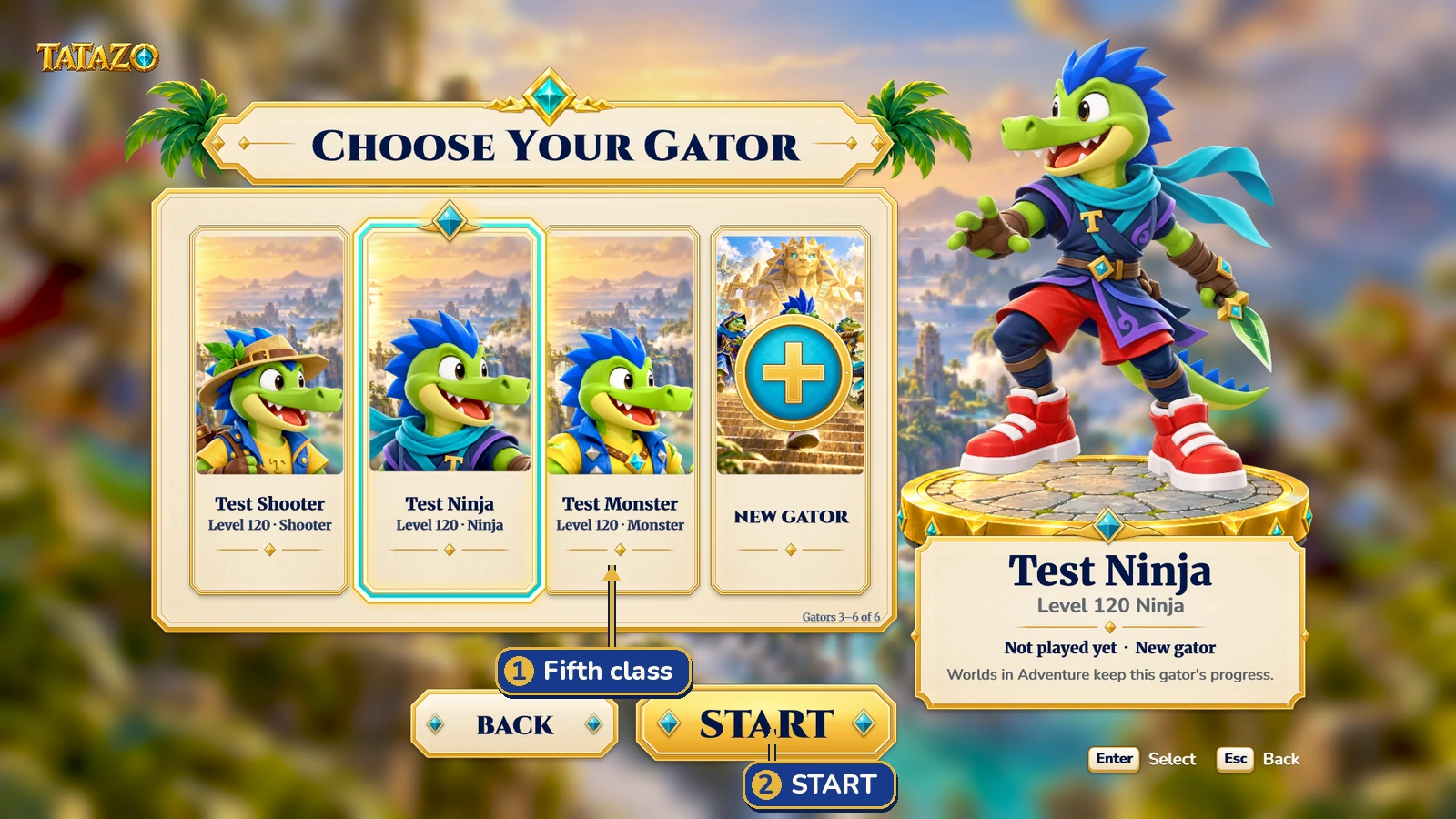
What each tester gator gets
- One of the five classes at level 120, with trained skills.
- The highest-level and rarest gear that its class and level can wear.
- Every pet unlocked and ready to call.
- Coins and crafting materials to help you try things.
- All paid store items as free tester grants: looks, the Vault Key, building packs, the Travelling Pedlar, the Raccoon Helper and both Hero's potions. Nothing is purchased.
World rules still apply. The Vault Key needs a Home Vault you have built. Tester grants do not carry into Steam or the release game. The /tester command exists only in the alpha.
Restart the game to return to your ordinary profile. From there, choose NEW GATOR and a new world for a fresh start. Creating another gator while still in the tester profile does not switch profiles. Enter /tester again to resume your tester gators; their progress is kept. Supplies arrive on each tester gator's first visit to a world, not every time you return.
What to test
Pick a few things you enjoy. You do not have to finish this whole list. Tell us both what worked well and what needs care.
Try each mode
| Mode | Things to try |
|---|---|
| Cozy | Gather, craft and meet a pet. Is the pace gentle and easy to understand? |
| Adventure | Play from a fresh start. Try combat, a quest and your first class choice. |
| Explore | Visit new places and experiment with your class. Are the freer rules clear? |
| Survival | Watch food and danger. Check whether the game explains what happens when you fall. |
| Creative | Build, remove and replace pieces. Save, leave and return to your creation. |
| Hardcore | For teens: read the risk warning before starting. Test with a new gator and report unclear loss or recovery rules. |
| APOCALYPSE | Try a solo run, inspect the score screen, and try again. Check the one-life rule and leaving a run. Steam boards and prizes cannot be fully tested in this alpha. |
Read Explore worlds, Survival worlds and "Apocalypse: how long can you last?" for the rules behind those choices. Family settings can limit which worlds are available.
Compare all five classes
- Knight: try close combat and protecting a friend.
- Mage: try ranged attacks, healing and control abilities.
- Shooter: aim from a distance and try different ranged weapons.
- Ninja: try movement, quick attacks and getting out of danger.
- Monster: call a creature ally and try its heavy attacks.
Open the Skill Book and try your abilities. Compare two classes in the same area. Tell us what felt clear, too strong, too weak or especially fun. See Picking your class and Combat and elements.
Explore the game's systems
- Crafting: gather an ingredient, discover a recipe and craft at the right station. Try a recipe with something missing. See Crafting: discover recipes and make anything.
- Building: place and remove pieces, make a small home, then leave and return. Check that it stays as you left it. See Building and waterworks.
- Pets: call a pet, change companions, fight together and return after leaving the world. See Pets.
- Starmane Pegasus: follow the riding guide, prepare a Starlight Bridle, and try taming, mounting, climbing and gliding. Report awkward wings, camera movement or landing. Pet unlocks alone do not replace the horse-taming steps. See Getting around, and animal friends.
- Everyday life: fish, farm, meet townsfolk, visit the market and try a make-believe building quest.
- Settings: try Auto and Low in the same busy spot. Change volume, controls and window size. Try a controller if you have one. Check that your choices survive a restart.
Play with friends on the same network
- Use the same alpha version on both computers and connect to the same home network.
- The host opens PLAY WITH FRIENDS and hosts a world. The other player opens PLAY WITH FRIENDS and joins the host's world. If discovery misses it, use the host's local address and port in the join-by-address option.
- If your computer asks whether TATAZO may use the local network, allow it for your trusted home network. Guest Wi-Fi can keep devices apart.
- Try exploring, fighting and building together. Leave, rejoin and check your progress. The host must keep the world open.
Steam invites and the Steam friends list are off in this alpha. Shared worlds keep running while you read menus or write feedback, so find a quiet place first. See Hosting, visitors and password worlds for more help; its newest screens may look different from this alpha.
Report a problem or share an idea
Open FEEDBACK with F7, or choose Pause → FEEDBACK or Settings → Feedback. On a controller, use the pause menu and its on-screen action hints.
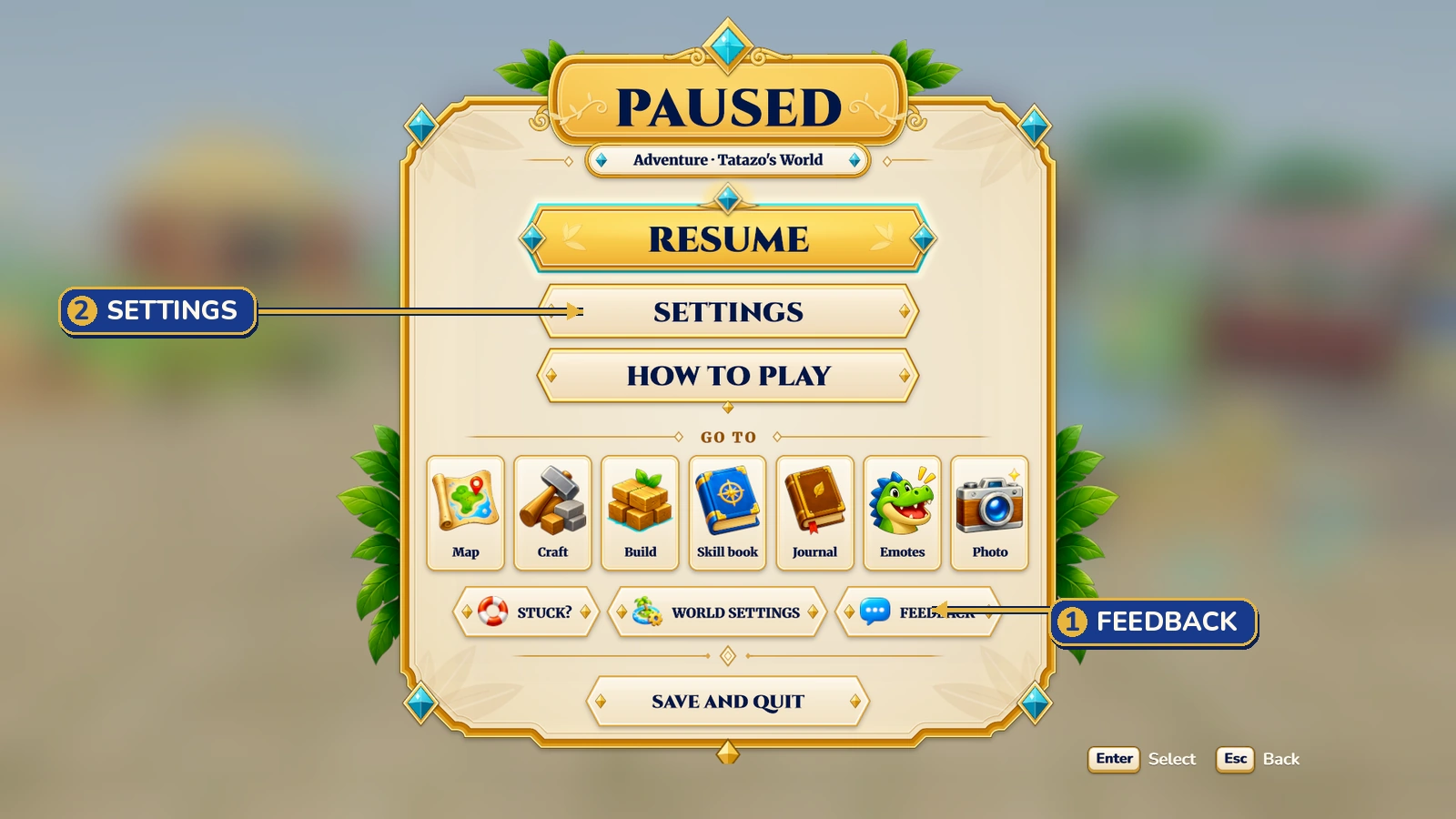
- Choose the kind: Bug, Looks wrong, Idea, Something I loved, Too hard or too easy, or Other.
- Write what you did, what happened and what you expected instead. For praise, tell us which moment you loved and why.
- Check the automatic screenshot and the game-map location. Untick the screenshot or game log if you do not want to include it.
- Choose SEND to send the report to the team. SAVE keeps a local copy without sending it.
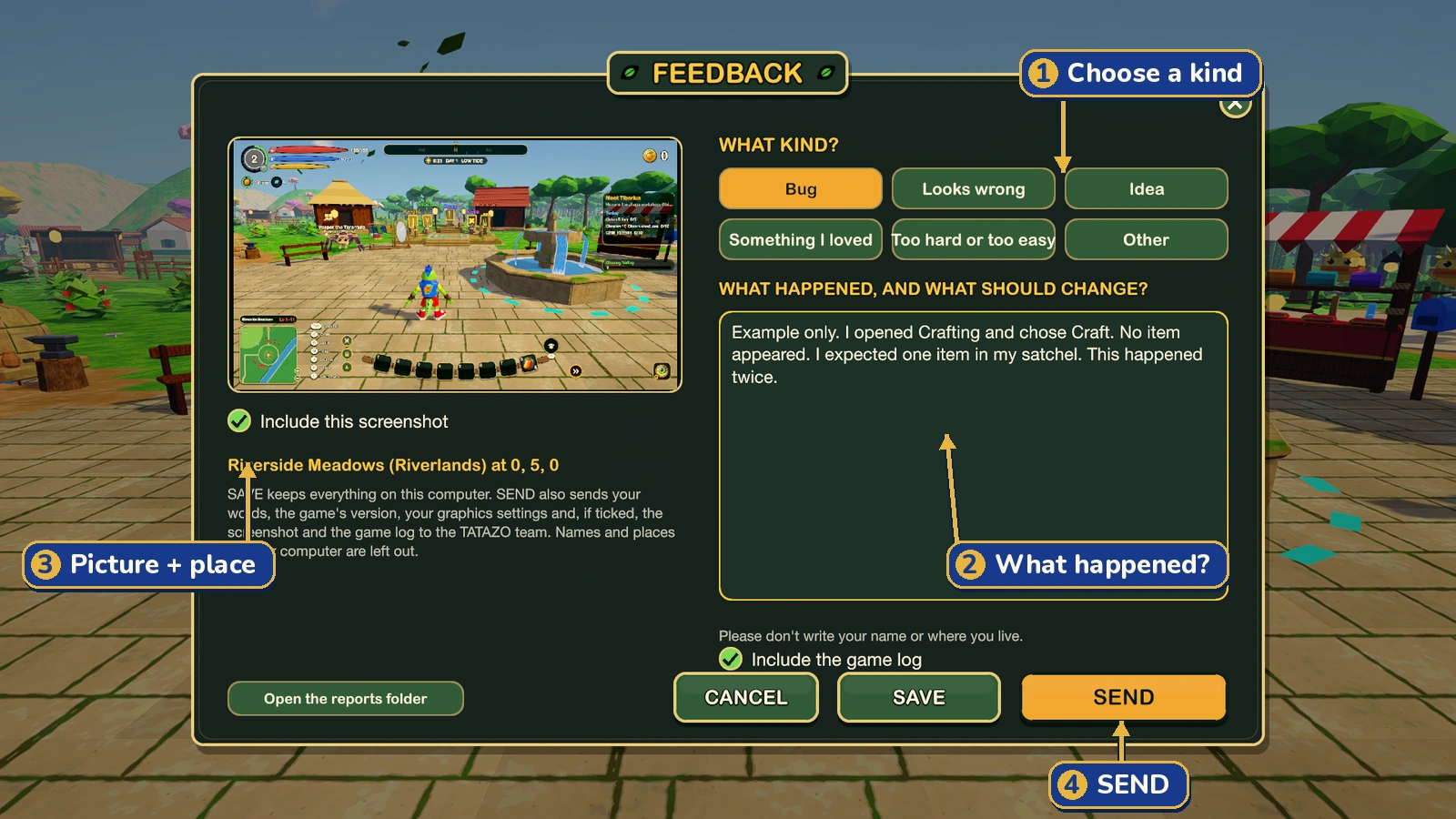
“I opened Crafting, selected the recipe and chose Craft. The button lit up, but no item appeared. I expected one item in my satchel. It happened twice after joining my friend's Adventure world.” Add whether you use a controller and whether it happens every time. One clear problem per report helps us find it.
If SEND fails, or the game closes
Your report stays saved on your computer if SEND cannot reach the team. Choose Open the reports folder, zip the bug_reports folder, and email it to support@playtatazo.online. Online sending may be unavailable during alpha setup; email is the fallback.
- Windows: open File Explorer, paste
%USERPROFILE%\AppData\LocalLow\Duck Mines Game Studio\TATAZO\bug_reportsinto the address bar, and open it. Go up one folder to zip bug_reports. - macOS: in Finder, choose Go → Go to Folder… and paste
~/Library/Application Support/unity.Duck Mines Game Studio.TATAZO/bug_reports. Go up one folder, right-click bug_reports, and choose Compress “bug_reports”.
If a crash happened before you could make a report, reopen the game and describe the crash in FEEDBACK. Say it happened before the restart; the new screenshot will show the new session. If the game cannot reopen, email the steps and exact error instead. Never send your whole save folder when only a report is needed.
Known issues, privacy and where to talk
Things we already know about
- Performance is still being improved. Try Low and report stutters in busy places.
- Isle towns still share the first river town's look.
- XP can arrive very quickly around levels 5–6.
- The market may be empty during the first minute of a new world. Give it a moment and check again.
- The camera may start too close to your gator after arriving on another isle. Adjust the camera and tell us where it happened.
- The builds are unsigned. Follow the first-open steps above.
- Steam achievements, the Steam friends list and the store are off. Tester grants let you try paid items without buying them.
Please still report a known issue if you find a reliable way to cause it, a new detail or a way around it.
What a report contains
SEND shares your words, report kind, game version, operating system, graphics card, graphics preset, recent performance and area name. It includes the screenshot and game log only when selected. The outgoing log removes local user names and computer paths. The small online report does not include your account or exact map coordinates.
The local report is fuller. It can include the exact game-map position, camera direction, character state, open menus, nearby objects and recent game events. If you email the zipped reports folder, you are sharing that fuller report. Review the screenshot and your words before sharing. Do not put your real name, home address or other private details in a note.
No webcam images or camera data are included. Solo play needs no internet. Reports stay on your computer unless you choose SEND or share them yourself. Playing with friends sends the game data needed for that shared world.
Keep in touch
Send questions, ideas and reports to support@playtatazo.online. Use email while forum access is unavailable; the wiki's Forum link is the place for community discussion when it is open. Please be kind to other testers and describe the problem, not the person.
Thank you for helping the river valley grow. Pick one class, build one small thing, or invite one friend. Your next discovery may be the detail that makes TATAZO better for everyone.